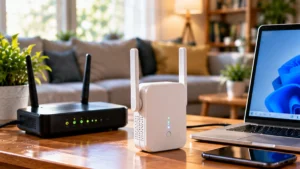
When several phones and computers lose the connection at the same time, troubleshooting each one individually wastes time. Find out whether the wireless network itself disappears or whether devices remain connected to the router but lose internet access.
Record what happens during an outage
Check two devices in the same room as the router. Does the Wi-Fi network name disappear, or do devices still show a connection? Observe the modem or optical network terminal lights without unplugging anything. Record the time, duration and any WAN, Internet or LOS warning, using your equipment’s manual to identify the lights.

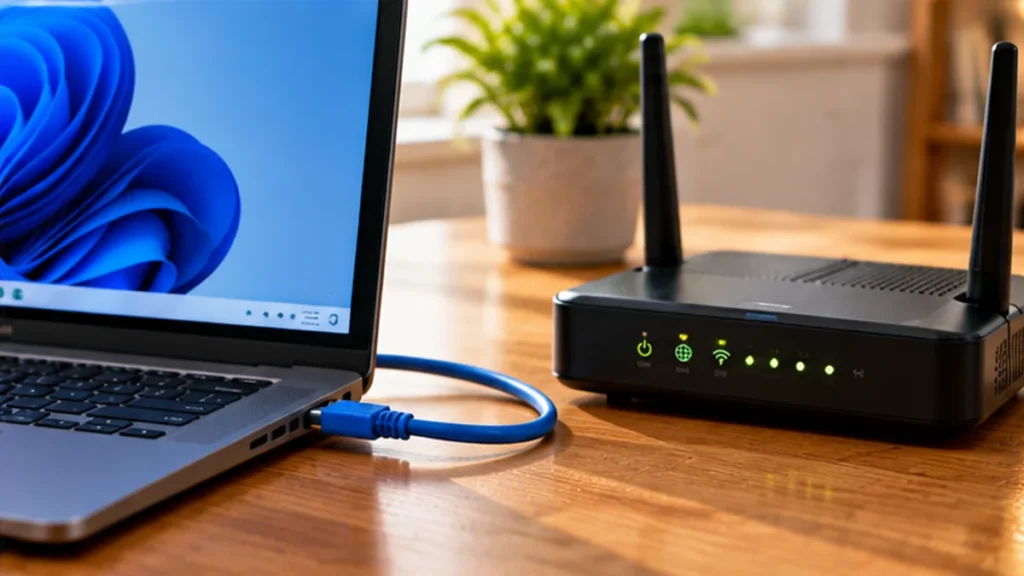
Use Ethernet to separate Wi-Fi from the internet line
Connect a computer directly to a LAN port on the main router, disable its Wi-Fi temporarily and browse while monitoring the wireless devices. If Ethernet continues working while Wi-Fi drops, the wireless system is more likely involved. If both fail simultaneously, investigate the router’s WAN connection, modem or provider. Avoid connecting an unprotected computer directly to a modem unless your provider instructs you to do so.
| During the outage | Likely area to investigate |
|---|---|
| Ethernet works; Wi-Fi fails | Wireless coverage, radio or extender |
| Both fail; WAN light changes | Router WAN, modem or ISP |
| Only one device fails | That device or its connection |
Test coverage without the extender
Compare a device near the main router with one in the room where dropouts occur. Temporarily turn off a range extender if it is safe to disrupt that network. If service improves, review extender placement and its upstream link. Congested channels can contribute; use the router’s supported automatic channel selection rather than selecting a random fixed channel.
For a room-specific failure, see improving Wi-Fi extender coverage.

Restart and inspect shared equipment
Check that the router has ventilation and its power adapter and WAN cable are securely connected. A normal restart through the router interface or manufacturer’s instructions may clear a temporary fault. Wait for the modem or fiber terminal to reconnect before judging the result. Avoid a factory reset unless you have the provider configuration and know how to restore it. Google router restart instructions.
Give your provider useful evidence
If wired and wireless connections repeatedly fail together, send your provider the recorded timestamps, equipment light status and Ethernet result. If outages happen only in one room or only on the extender, start with the local wireless setup. This distinction is more informative than reporting a slow speed test alone.
Capture evidence during a connection drop
Find the router address from the default gateway on a connected computer. During the next outage, try opening that local router address and a familiar HTTPS website, then compare another device. If local access fails on Wi-Fi but works on Ethernet, investigate the wireless link. If both can reach the router but neither can reach the internet, investigate the WAN connection.
Related guides: Internet Works on Your Phone but Not Your Windows Laptop · Windows 11 Connected to Wi-Fi but No Internet? Diagnose the Link