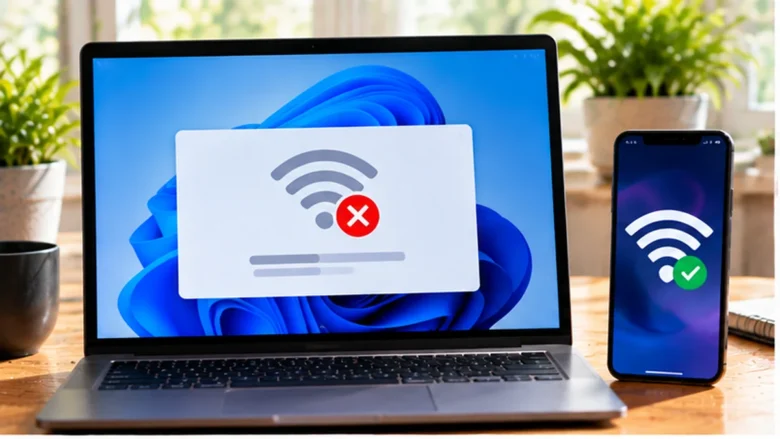
A phone that can browse while a laptop cannot offers a useful comparison, provided both use the same network. Phones often switch to mobile data automatically, so confirm the comparison before assuming the router is working.
Make both devices use the same connection
On the phone, temporarily turn off mobile data and open a website over the same Wi-Fi network as the laptop. On the laptop, open Quick Settings (Win+A) and verify that Wi-Fi is enabled and airplane mode is off. If the phone also fails after cellular data is disabled, troubleshoot the shared internet connection instead.

If the laptop cannot join Wi-Fi
Open Settings → Network & internet → Wi-Fi → Show available networks. If the correct network is visible but authentication fails, check the password and security settings. For a personal network, use Manage known networks to forget it and reconnect if you know the password.
If no network appears, inspect the wireless adapter in Device Manager and look for a physical wireless switch or airplane-mode key. Microsoft Wi-Fi troubleshooting.
If it joins but websites do not load
Open Command Prompt and run ipconfig. Under the active Wi-Fi adapter, check its IPv4 address and Default Gateway. A self-assigned 169.254.x.x address without a gateway often means Windows did not receive a DHCP lease.
If normal addressing is present, try the browser on multiple sites and check Settings → Network & internet → Proxy for an unintended manual proxy. Corporate VPN and proxy settings may be required; ask IT before changing them. Windows troubleshooting tools.
For detailed address, gateway and DNS checks, use Windows connected to Wi-Fi without internet.
Try a second network and a wired connection
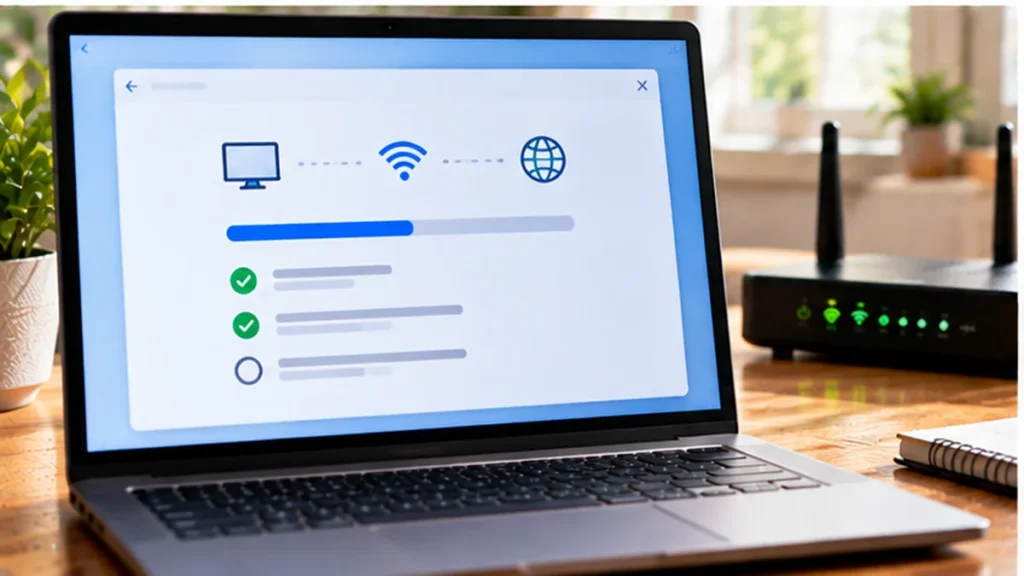
Connect to a trusted phone hotspot if your data plan permits. If the laptop works there, focus on compatibility with the original router rather than reinstalling Windows. Where available, connect Ethernet to the same router and turn off laptop Wi-Fi. If Ethernet works while Wi-Fi fails on several networks, look at the wireless adapter and its manufacturer’s drivers. Microsoft Ethernet troubleshooting.
If the laptop connects to a phone hotspot but not the original router, check whether the router uses a wireless band or security mode your adapter supports. Older adapters may not support 6 GHz or certain newer security configurations. Do not weaken security across the entire network just to make an outdated device connect.

Choose a repair based on the result
Restart Windows and install the appropriate Wi-Fi driver if adapter errors persist. The Windows Network and Internet troubleshooting flow in Get Help can help identify configuration issues. Avoid resetting the main router when other devices are working normally. Use Windows network reset only if less disruptive repairs fail; it can remove adapter configuration and require VPN setup again.
Run a two-network comparison
Connect the laptop and phone to the same Wi-Fi, temporarily disabling mobile data on the phone if safe. Check the same HTTPS page on each. Then try the laptop on the phone’s hotspot if your data plan allows it. A laptop that works on the hotspot but not the original Wi-Fi points toward a network-specific issue rather than a universal adapter failure.
Related guides: Wi-Fi Keeps Dropping on Every Device? Find the Fault · Troubleshooting USB Device Not Recognized Errors in Windows