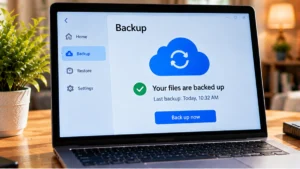
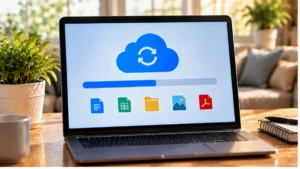
A file can exist on your computer without reaching Google Drive, or it can be available online without appearing locally. Before disconnecting Drive for desktop, establish which direction has stopped. Unsynced work is the first thing to protect.
Find the stuck direction
Open Drive for desktop from the Windows system tray or macOS menu bar and inspect its activity and error messages. Sign in to drive.google.com with the same account. Create a small disposable file in a synced folder and see whether it appears online; create another test file online and check whether it reaches the computer.
Use a folder you own to avoid confusing sync with shared-folder permissions.
Check connectivity and permissions
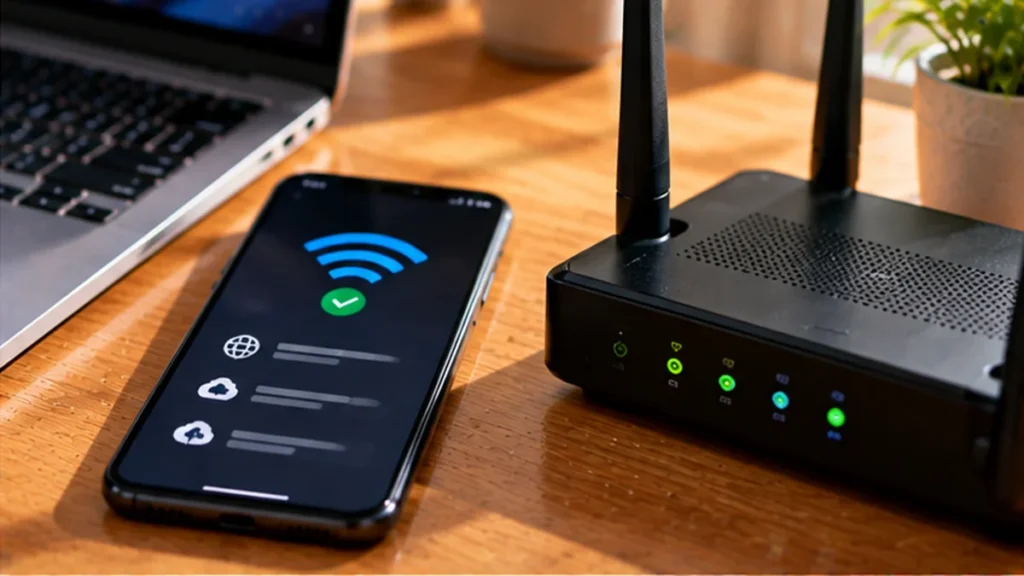
Verify the browser can reach Drive. If the desktop client reports a connection error, try another trusted network, check proxy requirements and resume sync if it was paused. If only one file fails, inspect its ownership, folder access and whether another application is holding it open. On macOS, check the app’s requested file and folder permissions. Google Drive for desktop troubleshooting.
Inspect cloud and local storage separately
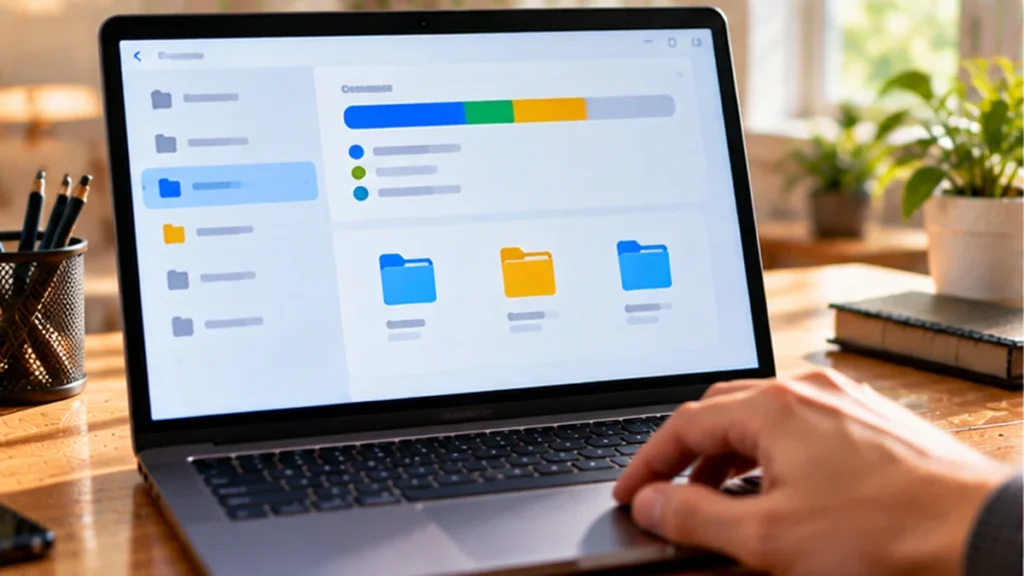
Review your Google Account allowance at one.google.com/storage. The computer also needs free space for cached or mirrored files. Streaming saves local disk space by downloading files as needed; mirroring keeps local copies of My Drive. A streamed file may be unavailable offline unless explicitly marked for offline access.
For a shared drive, the appropriate storage limit and permissions can be controlled by a Workspace administrator rather than the personal Google One account. Read the exact error message before attempting to move or rename a file owned by someone else.
Restart the client without deleting its cache
Quit Drive for desktop from its menu, reopen it and monitor Activity. If the client offers to move unsynced files to a recovery or Lost & Found location, save those files outside the Drive folder. Google warns that previously unsynced files in Lost & Found may be removed upon account disconnection.
Do not delete the cache or disconnect the account until unique work has been copied elsewhere. Google Drive for desktop troubleshooting.
Confirm the repair before reconnecting the account
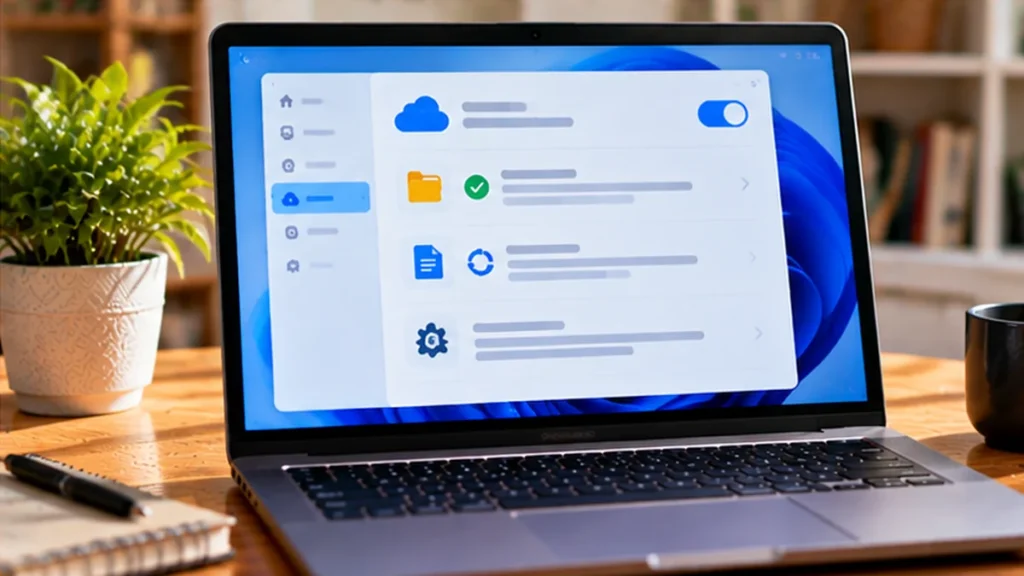
When a reinstall or account reconnect is necessary, obtain the official installer and preserve unique local files first. Compare the original test files in both directions and open recent edited documents online to confirm the latest version arrived. A green status icon alone does not guarantee that the particular revision you need was uploaded.
To verify independent copies outside sync, follow testing a computer backup.
Check both directions with a disposable file
Create a small text file with a unique name in a folder that is intended to sync. Verify that it appears in the correct account on drive.google.com. Edit a disposable file in the browser and confirm the change locally where the sync mode supports it. If only one direction fails, inspect permissions and folder configuration before disconnecting the account.
Related guides: Fix OneDrive When It Gets Stuck on Processing Changes · Fix a Stuck Google Photos Backup on Android