Battery drain while watching video at high brightness is different from losing charge while the phone sits untouched. Start by identifying which pattern you have. A battery percentage alone does not tell you whether an app, weak signal or physical battery wear is responsible.
Read the battery usage screen
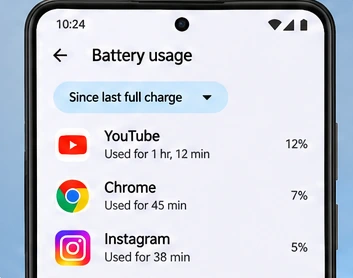
Open Settings → Battery → Battery usage on Android; exact labels vary by manufacturer. Review the period shown and compare screen activity, apps and system components. An app at the top is not necessarily faulty if you used it heavily. Focus on large background activity from an app you barely opened. Battery-usage percentages can represent a share of consumption rather than the exact percentage points lost from the battery. Google Pixel battery usage information.
Measure idle drain once, then compare
Choose two comparable periods at home while the device is otherwise safe. Record start and end charge, duration, Wi-Fi or mobile connection, and whether downloads or notifications occurred. Calculate percentage-point loss as start minus end; dividing by elapsed hours gives loss per hour.
On the second period, change only one optional suspected app or setting. Keep essential alerts and emergency connectivity enabled. Results differ by phone, network and battery age, so use your own comparable periods rather than a universal target. A small difference may reflect rounding in the battery indicator; repeat the comparison before drawing conclusions. One short trial cannot establish battery health.
| Record this | Period A | Period B |
|---|---|---|
| Start and end charge | Record values | Record values |
| Elapsed time | Record hours | Use comparable duration |
| Network / activity | Record conditions | Keep conditions comparable |
| One optional change | Baseline | Record change |
Restrict a specific app instead of everything
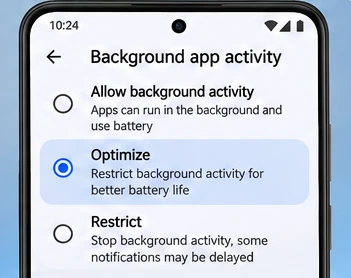
Open Settings → Apps → the suspected app → App battery usage. Use the normal optimized setting before applying a stronger restriction. On Samsung devices, review Background usage limits. Pause an unnecessary sync or remove an app you no longer use after saving its data. Stronger restrictions can delay notifications and backups; verify those functions still work before keeping a change.
If restrictions interrupt alerts, see missing Android notifications before keeping the change.
Address screen and cellular power separately
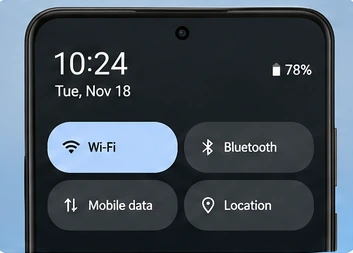
For drain during active use, review adaptive brightness, screen timeout, high refresh rate and always-on display settings. For drain in weak-signal areas, compare use on reliable Wi-Fi and mobile coverage. Disable an unused hotspot, but keep necessary connected accessories active. Battery Saver can extend remaining runtime by limiting some features; it does not restore worn capacity.
After an update, temporary background optimization can increase usage. Google Android battery guidance.
Recognize a worn or unsafe battery
If the charge falls abruptly or the phone shuts down at a substantial indicated percentage, check manufacturer battery diagnostics where available. A factory reset does not restore physical capacity. If the case swells, the battery leaks or the phone becomes dangerously hot, stop using and charging it and seek qualified service.
For persistent drain without unusual software activity, provide your idle comparison record to the service technician. Google Pixel battery troubleshooting.
Related guides: Android Phone Overheating During Normal Use: Find the Cause · Android Phone Not Charging? Diagnose the Cable, Port and Battery