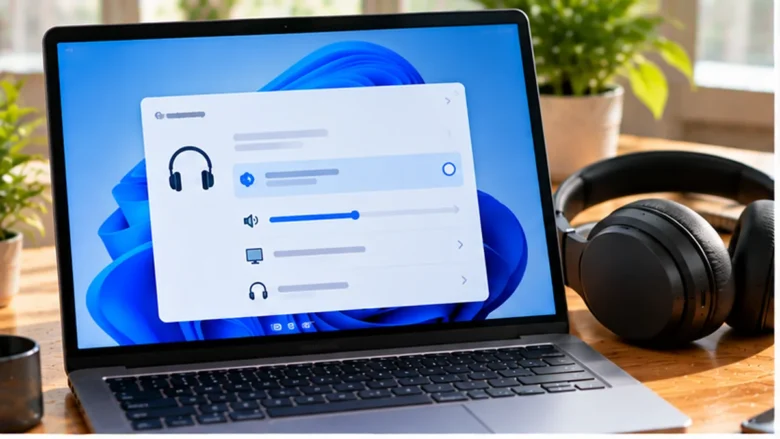
A connected Bluetooth headset is not necessarily selected as the playback device. Windows may still be sending audio to the laptop speakers, a monitor or another headset. Start by locating the active output rather than deleting the pairing.
Send sound to the headphones explicitly
Open Quick Settings with Win+A and select the audio output control beside the volume slider. Choose your Bluetooth headphones. In Settings → System → Sound, confirm they appear under Output and adjust the volume. Play a local audio file or use the device test where available. Check the headset’s own volume and mute controls as well. Microsoft Bluetooth audio guidance.
If the system plays audio but one app is silent
Open Settings → System → Sound → Volume mixer. Find the affected running app and check its individual volume and output choice. Meeting and gaming apps can select their own playback device, independent of Windows defaults. Restart the app after changing its output if it does not switch immediately.
Why music sounds different during a call
Many Bluetooth Classic headsets use a high-quality stereo profile for playback and a lower-bandwidth hands-free profile when the microphone is active. Older Windows configurations may list separate Stereo and Hands-Free devices; newer ones can switch automatically.
If sound becomes poor in calls, select the laptop microphone in the meeting app and use headphones for playback, where supported. Bluetooth LE Audio support depends on the PC, headset and drivers.
In a call, test playback with the meeting application closed, then open the meeting and repeat. This makes the microphone-related profile switch easier to distinguish from an unrelated Bluetooth dropout. If your headphones fail to play on both a phone and the computer, look for an accessory issue.
Reconnect only the affected headset
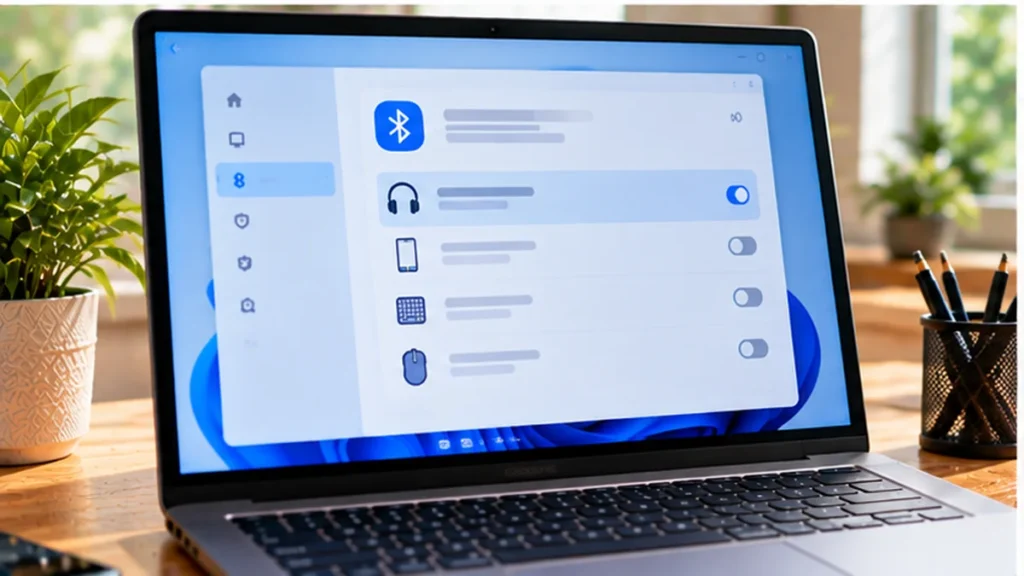
Turn the headphones off and on, disconnect them from another device if they keep reconnecting there, and retry. If necessary, use Settings → Bluetooth & devices → Devices to remove the headphones and pair again. This is useful when they appear connected but never create a usable audio output. Test the headphones on a phone to rule out an obvious headset fault.
When no Bluetooth output appears
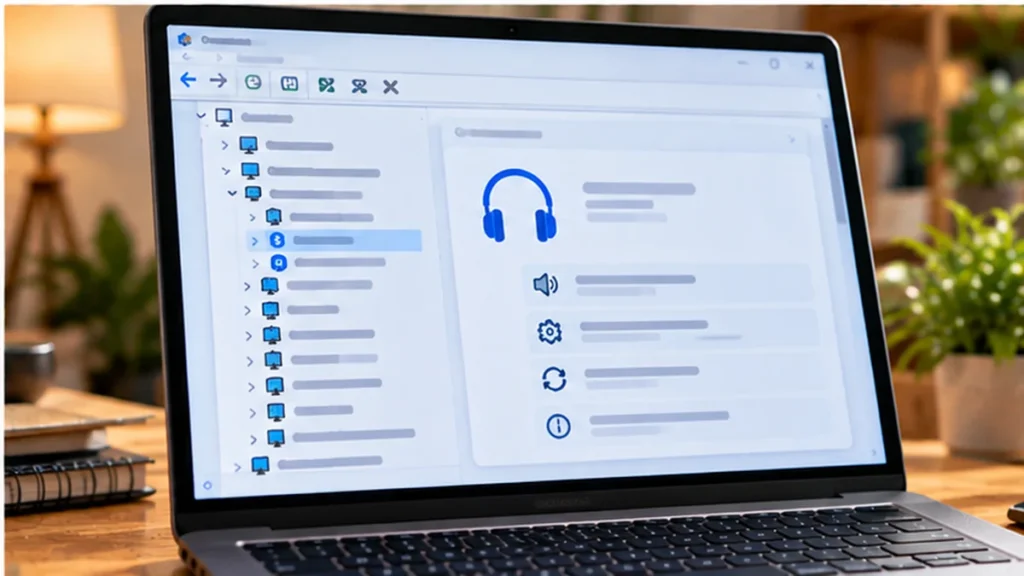
Inspect Device Manager under Bluetooth and Sound, video and game controllers for missing devices or warnings. Install the laptop manufacturer’s Bluetooth and audio drivers if Windows Update does not resolve the problem. If wired speakers also fail, use Windows sound troubleshooting for the broader audio path rather than treating Bluetooth as the only cause. Microsoft audio troubleshooting.
The integrated audio path is covered in Windows sound troubleshooting.
Compare system audio with application audio
Select the headphones as the Windows output and run the system sound test. Then play a known local audio file in a media player at a comfortable volume. If the test works but the player is silent, inspect that application’s output and volume mixer. If neither works, check the headset connection and selected endpoint.
Related guides: Restoring Bluetooth Device Discovery in Windows 11 · Diagnosing Microphone Problems in Windows 11