If a video appears to play normally but the speakers are silent, Windows may be sending sound to the wrong device. An HDMI monitor, a USB headset and a Realtek-powered headphone jack are separate audio paths. Diagnose the selected path before changing drivers.
Select and test the physical output
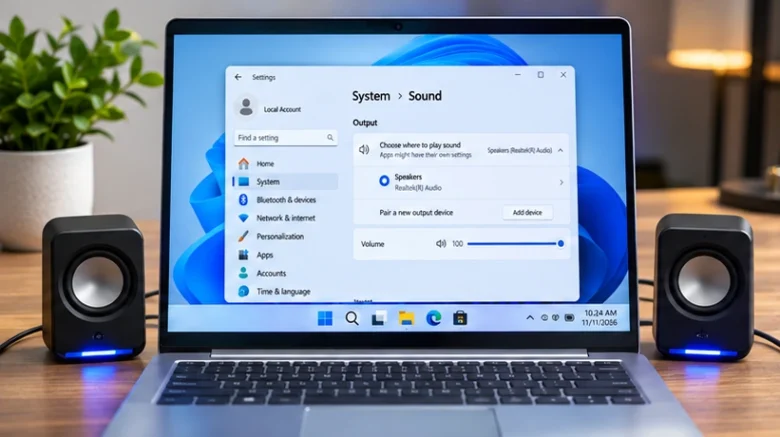
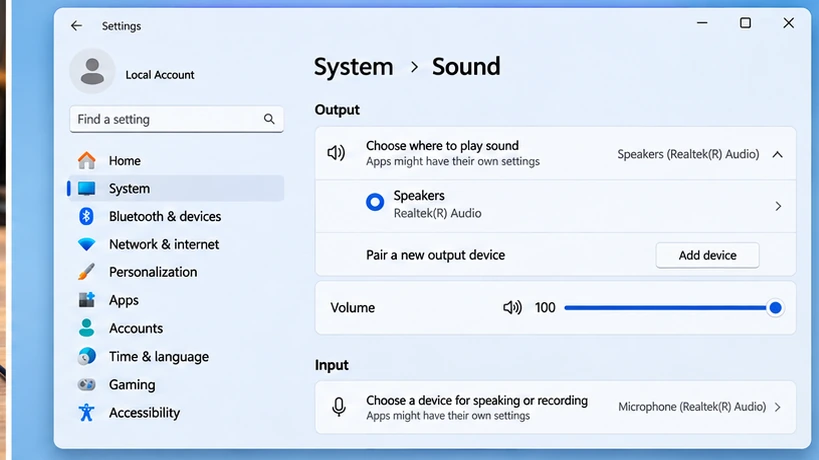
Check speaker power, the headphone plug and any inline volume control. Open Settings → System → Sound → Output and select the intended device. A monitor may appear as an HDMI or DisplayPort output even if it has no usable speakers. For a USB headset, choose its own audio device, not Speakers (Realtek(R) Audio).
Open the selected device’s properties and use Test where available. Microsoft audio troubleshooting.
| Output shown in Windows | Physical path |
|---|---|
| Speakers (Realtek(R) Audio) | Integrated controller and analog jack |
| USB headset name | Independent USB audio device |
| Monitor / display audio | HDMI or DisplayPort audio |
| Bluetooth headset name | Wireless audio device |
When only one app is silent
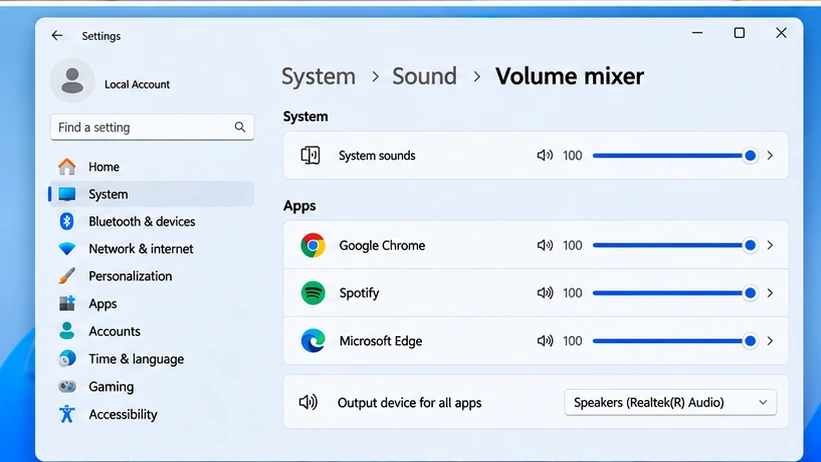
Go to Settings → System → Sound → Volume mixer while the affected app is running. Verify its volume, mute status and output selection. Some applications, particularly games and meeting tools, maintain their own audio output settings. If the Windows test tone plays but the app is silent, repair that routing first. Restart the application after switching devices if necessary.
When sound stops on the analog jack
Try a known-working wired headset and compare it with the laptop’s internal speakers. On a Realtek-equipped computer, both may share the same audio controller but use different physical outputs.
The manufacturer’s audio console may control jack detection or speaker switching. A USB headset bypasses the analog jack and can help isolate that path. If it works while analog devices fail, investigate the jack and integrated audio driver.
Inspect enhancements and driver status
Open Settings → System → Sound → the selected output and temporarily set Audio enhancements to Off if available. Try the same test sound again. If the output is absent, open Device Manager → Audio inputs and outputs and Sound, video and game controllers. Install the correct audio package from your PC manufacturer or Windows Update.
If sound stopped after an update, inspect Properties → Driver → Roll Back Driver. Microsoft missing audio output guidance.
For driver-specific steps, see Microsoft’s audio driver instructions.
If Windows displays a monitor as an audio device but you want sound from external analog speakers, choose the analog output in Windows even when the monitor is the default display. If only one audio format fails, review the supported format in the output device properties instead of replacing the entire driver.

If every output remains silent
Run the audio troubleshooting flow in Get Help. Open services.msc and confirm Windows Audio and Windows Audio Endpoint Builder are running; do not change startup settings on a managed PC without approval. Restart Windows and test the selected output again. If all speakers and headphones fail across known-good connections, investigate the computer’s audio hardware. Bluetooth playback has its own pairing and profile checks.
For a wireless headset, use the separate guide to silent Bluetooth headphones.
Isolate the affected output path
Run the Windows sound test on the built-in speakers, then on a known-good wired headset if available. Keep the volume low before connecting it. If the headset works but speakers do not, investigate speaker routing or hardware; if neither works, inspect system audio settings and services. USB audio is a separate control if available.
Related guides: Diagnosing Microphone Problems in Windows 11 · Diagnose a Stalled Windows Update Before Resetting Your PC