A microphone can be detected by Windows but unavailable to a meeting app. The input meter in Sound settings is the quickest way to distinguish a system-level recording problem from an application problem. Start there after checking the physical mute control.
Check the connection and microphone permissions
Make sure the headset’s mute switch is off. A four-pole headset plug requires a compatible combo jack; a desktop with separate headphone and microphone jacks may require an appropriate splitter.
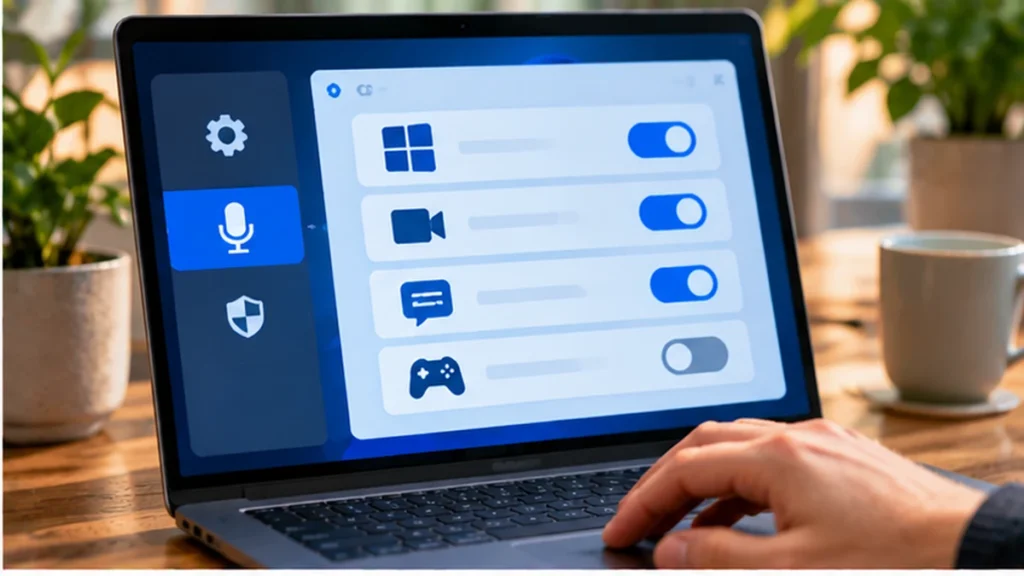
For USB microphones, connect directly to a known-working port. Go to Settings → Privacy & security → Microphone and enable Microphone access and the appropriate app access options, including Allow desktop apps to access your microphone when needed. Microsoft microphone permissions.
Select the correct input and watch the meter
Open Settings → System → Sound → Input and choose the microphone you want. Speak normally and inspect its input level or use Start test if available. Increase Input volume if the recording is too quiet.
A USB microphone should appear as its own device; a 3.5 mm microphone may appear through the computer’s integrated audio controller rather than under the headset brand. Microsoft microphone setup and test.
| Input meter | Application behavior | Where to investigate |
|---|---|---|
| Moves | App silent | App input or permission |
| Does not move | All apps silent | Hardware, input device or driver |
| Moves on built-in mic only | External mic silent | Connector, mute or external device |
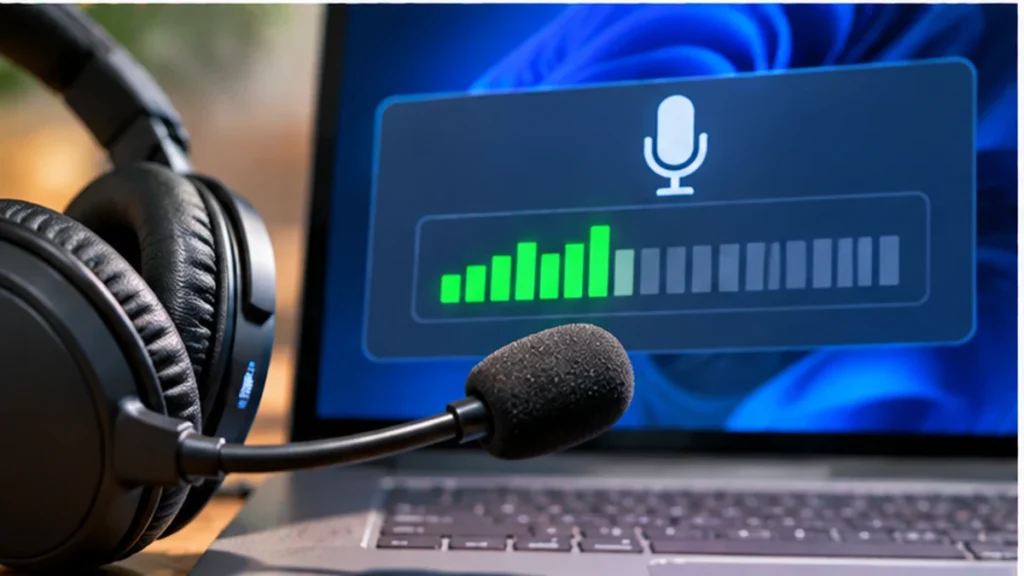
Use a separate recording as a control
Record a short non-sensitive sample in Sound Recorder if available, and play it back. A clear recording means the system can capture sound. In the meeting app, select the same microphone and review mute controls, input sensitivity and browser site permissions. A browser’s permission for a particular website is separate from the Windows microphone permission.
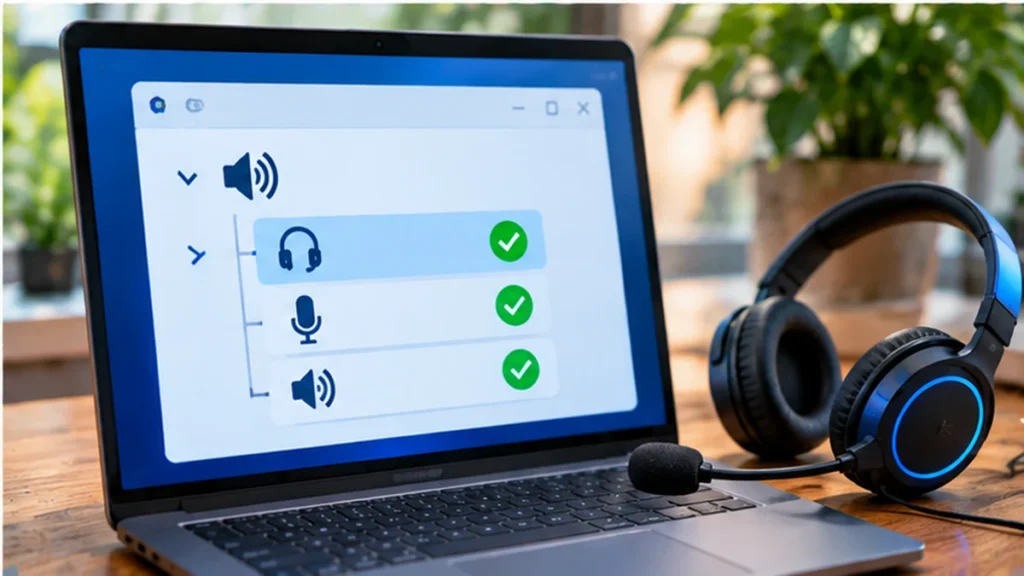
Check wireless behavior and drivers
A Bluetooth headset may change audio profile when its microphone is active. Test the laptop’s built-in microphone or a wired device if speech quality drops during calls. If an input is missing from Windows, open Device Manager → Audio inputs and outputs and Sound, video and game controllers. Check warning icons and use the PC or microphone manufacturer’s driver where applicable. Microsoft microphone troubleshooting.
For playback trouble during Bluetooth calls, see silent Bluetooth headphones.
Verify the intended setup
Retest after restarting the affected app and make sure the chosen input retains its setting. If no recording works with a known-good microphone on multiple ports, investigate the computer’s audio controller or jack. If the headset fails on another compatible device too, check the headset hardware before changing more Windows settings.
Compare the input meter with a recording
Select the intended microphone in Windows Sound settings and speak normally while watching the input meter. Record a short non-sensitive sample using Sound Recorder and play it back at a safe volume. If the meter responds and the recording is clear but a meeting app fails, inspect that app’s selected microphone and permissions.
Related guides: Windows 11 No Sound? Troubleshoot Speakers and Wired Headphones · Troubleshooting USB Device Not Recognized Errors in Windows